
 RETAIL OPERATIONS
CartSense
Track carts through entrances and checkouts.
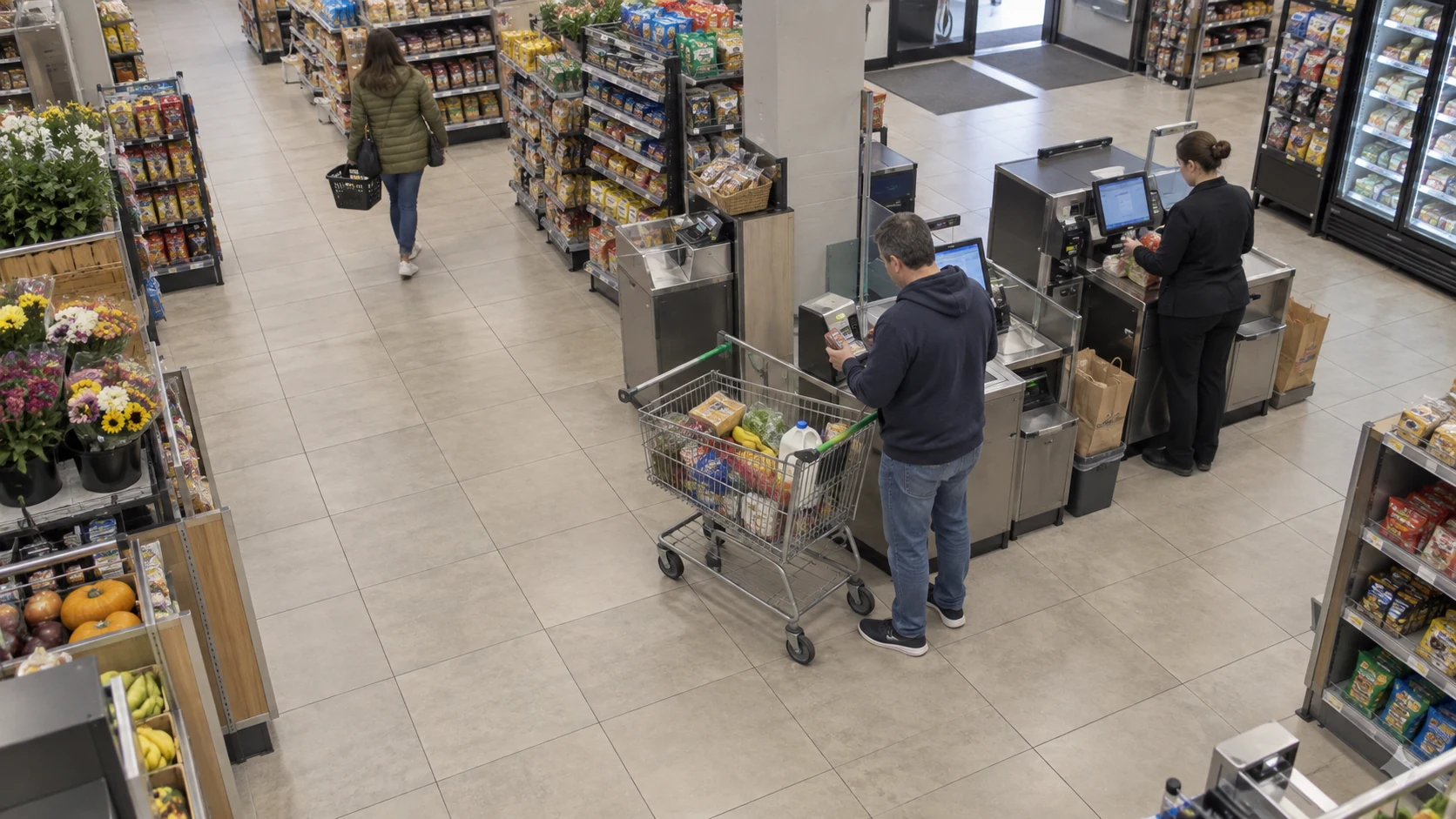
Track shopping carts as they cross a defined line, classify them as full or empty and send the matching event to your store systems. CartSense combines cart tracking, direction rules and visual feedback for entrances, gates and checkout areas.
Evaluation by arrangement
Axis · CartSense
HOW IT WORKS
Cart · fullPerson
- Cart class
- Full
- Rule
- Zone + direction
Full cart identified in the checkout zone
Classify carts as full or empty, then combine the result with zone and movement rules.
- Find the cart
- Classify contents
- Review the result
PURPOSE-BUILT CAPABILITIES
What the application does.
Choose the detection settings and events that fit your camera view and operation.
A configurable monitoring region, crossing line and left-to-right, right-to-left or bidirectional rules
Adjustable delay between a valid crossing and its event
Full/empty classification in the current ARTPEC-8 and ARTPEC-9 profiles, enabled by default and configurable
Distinct full-cart, empty-cart and ordinary crossing events
Live cart overlays and classification results for setup and event review
HOW IT WORKS
From setup to everyday use.
01
Define the crossing
Set the monitoring region, position the crossing line and choose one direction or both for your entrance, gate or checkout layout.
02
Track and classify the cart
Follow the cart through the configured area. When enabled, the classifier uses cart images collected around the crossing to estimate full or empty status.
03
Route the matching event
Send a full-cart, empty-cart or ordinary crossing event to your store systems for staff to review in context.
Supported cameras and requirements.
- Selected Axis ARTPEC-8 and ARTPEC-9 cameras with a matching CartSense package.
- The current A8 and A9 profiles include full/empty classification. Its suitability depends on cart type, camera viewpoint and how clearly the basket is visible.
- Crossing geometry, direction and event delivery are commissioned for the actual entrance or checkout layout.
INSTALLATION & SETUP
How to get started.
Confirm the camera, cart types and what you need to monitor.
Install the matching application, then set the monitoring region, crossing direction and event delay.
Test empty, loaded, partly obscured and closely spaced carts.
Verify downstream notification and staff response.
FAQ
Questions before you start.
Send us your camera model and intended use. We’ll help you check compatibility and plan a trial.
Can full/empty classification be switched off?
Yes. It is enabled by default in the current A8 and A9 profiles. Switching it off retains ordinary crossing alarms and removes full/empty-specific labels and alarms.
Does it measure how full the cart is?
The classifier estimates full or empty status. It does not provide an exact fill percentage, identify every item or replace a checkout transaction.
Does a cart event prove theft?
No. A crossing or cart-state event is a prompt for contextual review and should not be treated as proof of intent.
Find the right app for your camera.
Tell us about your camera, your environment and the result you need.